
Written on October 23, 2026.
VoIP lets people make phone calls over the internet instead of old copper phone lines. That is why so many businesses use it today. But like anything that runs on the internet, it does not always work perfectly.
Sometimes a call sounds choppy, one person cannot hear the other, or the call drops in the middle of a sentence. These are some of the most common VoIP Problems, and the good news is that most of them are easy to fix once you know where to look.
In this article, we will walk through the problems people run into most, explain why they happen in simple words, and share steps you can try to make your calls sound clear again.
A VoIP call turns your voice into tiny pieces of data called packets. Those packets travel across the internet to the other person and get put back together into sound. When everything moves smoothly, the call sounds great. When the packets get delayed, lost, or blocked, the call starts to have trouble.
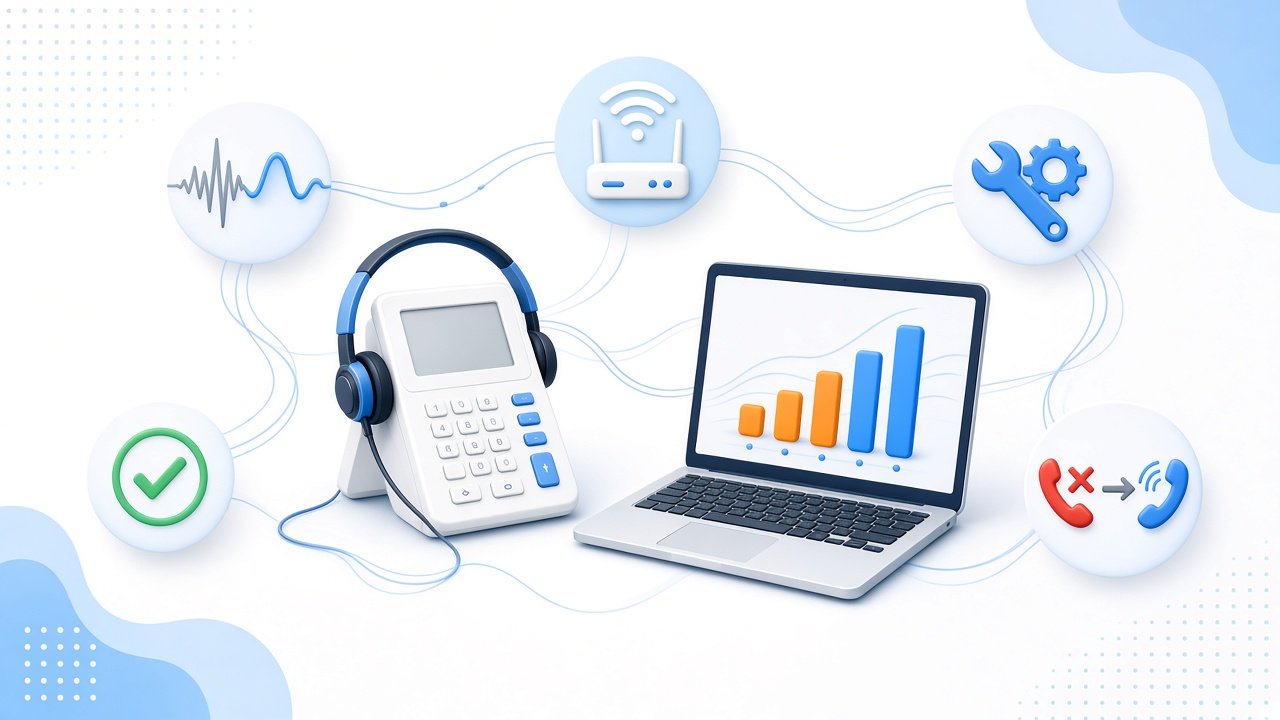
Most of the time, the issue is not the phone itself. It is usually the internet connection, the router, or a setting that is not quite right.
Choppy or robotic audio is one of the biggest complaints. This happens when packets arrive late or out of order, which is called jitter, or when some never arrive at all, which is called packet loss. A busy network is often the cause. If someone in the office is streaming videos or downloading huge files, phone calls have to fight for space.
To fix it, try plugging your phone or computer into the router with a cable instead of using Wi-Fi. You can also turn on a router feature called Quality of Service, or QoS, which tells the network to send voice traffic first. Our guide on how VoIP QoS works explains this in more detail.
Echo is another annoying problem. You hear your own voice bounce back a moment after you speak. This is often caused by a cheap headset, speakers that are too loud, or a microphone sitting too close to the speaker. Turning down the volume or using a good headset can help a lot.
Delay, also called latency, makes people talk over each other because the sound shows up late. A slow internet plan or a far away server can cause it. Running a speed test and checking with your internet company can show whether your connection is fast enough.
One-way audio means only one person can hear the other. This usually happens because a firewall or router is blocking the sound on its way back. A router feature called SIP ALG is a common cause, since it tries to help but often changes call information the wrong way. Turning it off fixes many cases, and you can read why in our article on what SIP ALG does to calls.
Dropped calls are when a call ends by itself, often after the same amount of time, like 30 seconds or 15 minutes. That pattern usually points to a router or firewall timer closing the connection too soon. Raising that timer or turning off SIP ALG often solves it.
Sometimes calls do not connect at all. The phone might show a message saying it is not registered. This often means the username or password was typed wrong, the server address is not right, or the internet is down. Double checking the settings your provider gave you is the first step.
The best way to deal with VoIP Problems is to stop them before they start. Make sure your internet plan has enough speed for everyone who makes calls at the same time. Keep phones, apps, and routers updated so they have the latest fixes.
Safety matters too. Strong passwords and locked down settings help keep strangers from using your phone lines. Our tips on keeping your VoIP system secure are a good place to start.
Finally, pick a provider that cares about call quality. A good provider watches its network, answers questions quickly, and helps you track down problems. If you are still looking, our guide on how to choose a VoIP provider can help you compare options.
We support all telecommunication services and needs. If you are dealing with call trouble, Bulk Solutions is here to help, since we value Quality and Reliability above everything else. You can see our current pricing page, or learn more in our guides on setting up VoIP and using PCAP files to troubleshoot calls.


